

Appearance
AI Coding
Shaep's browser editor supports AI coding assistants — including Claude Code — so you can go from a prompt to a deployed application without leaving the platform.
The Workflow
Here's what it looks like to build and ship an app with AI assistance:
1. Open the editor and start a conversation
Open your app's editor and launch your AI assistant. Describe what you want to build.
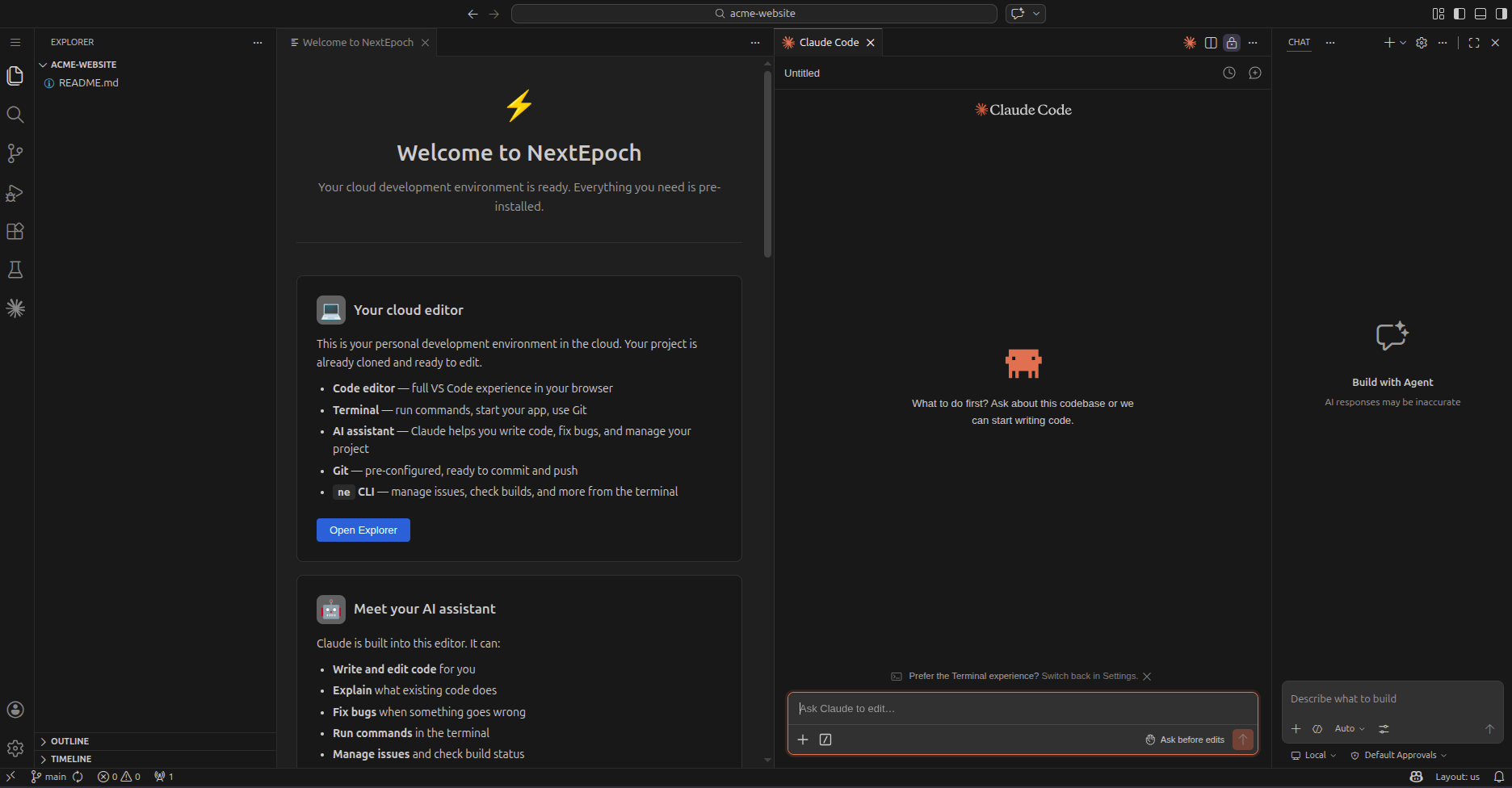
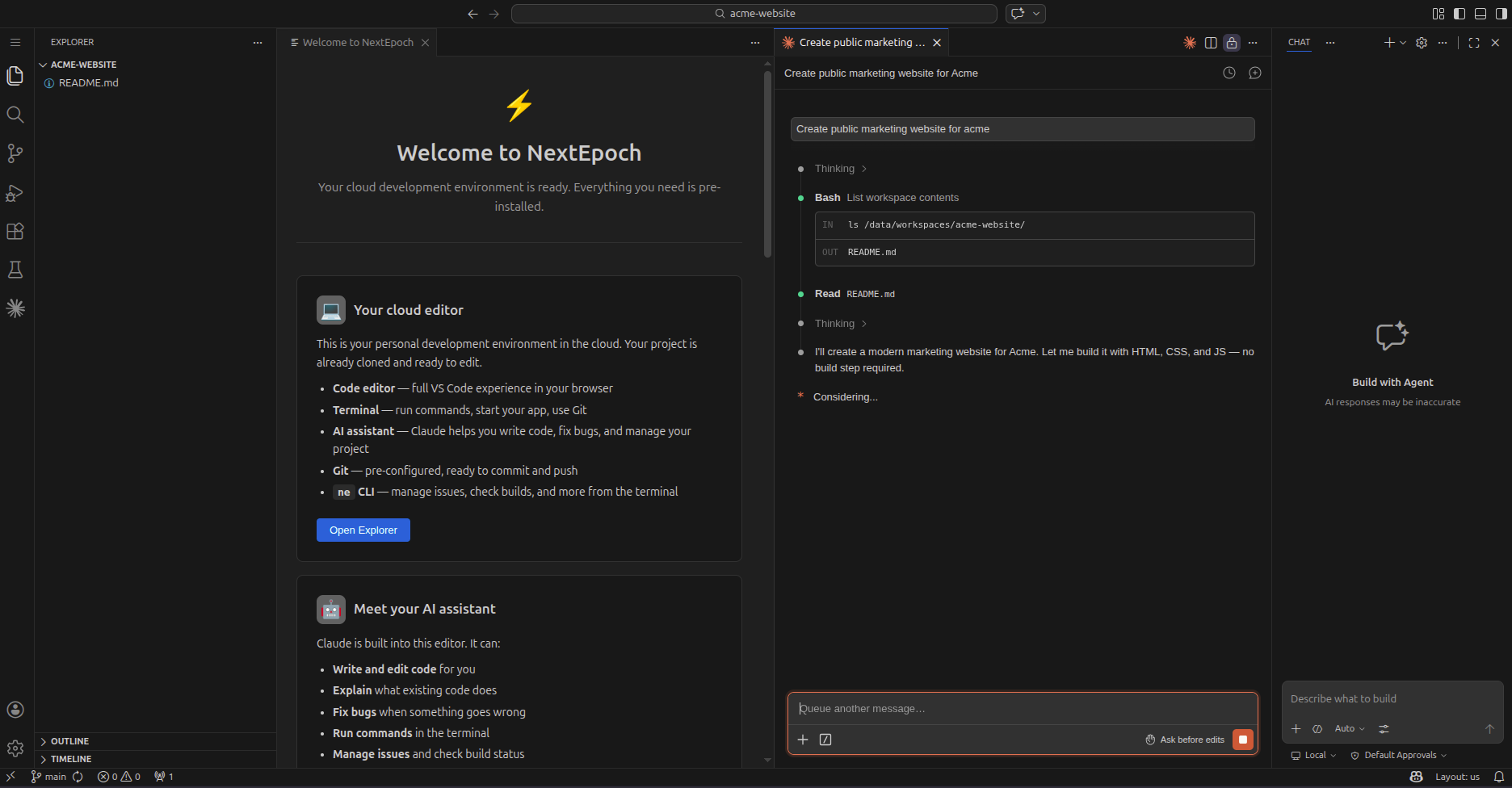
2. Let the AI plan the work
The assistant breaks your request into a task list and starts generating code.
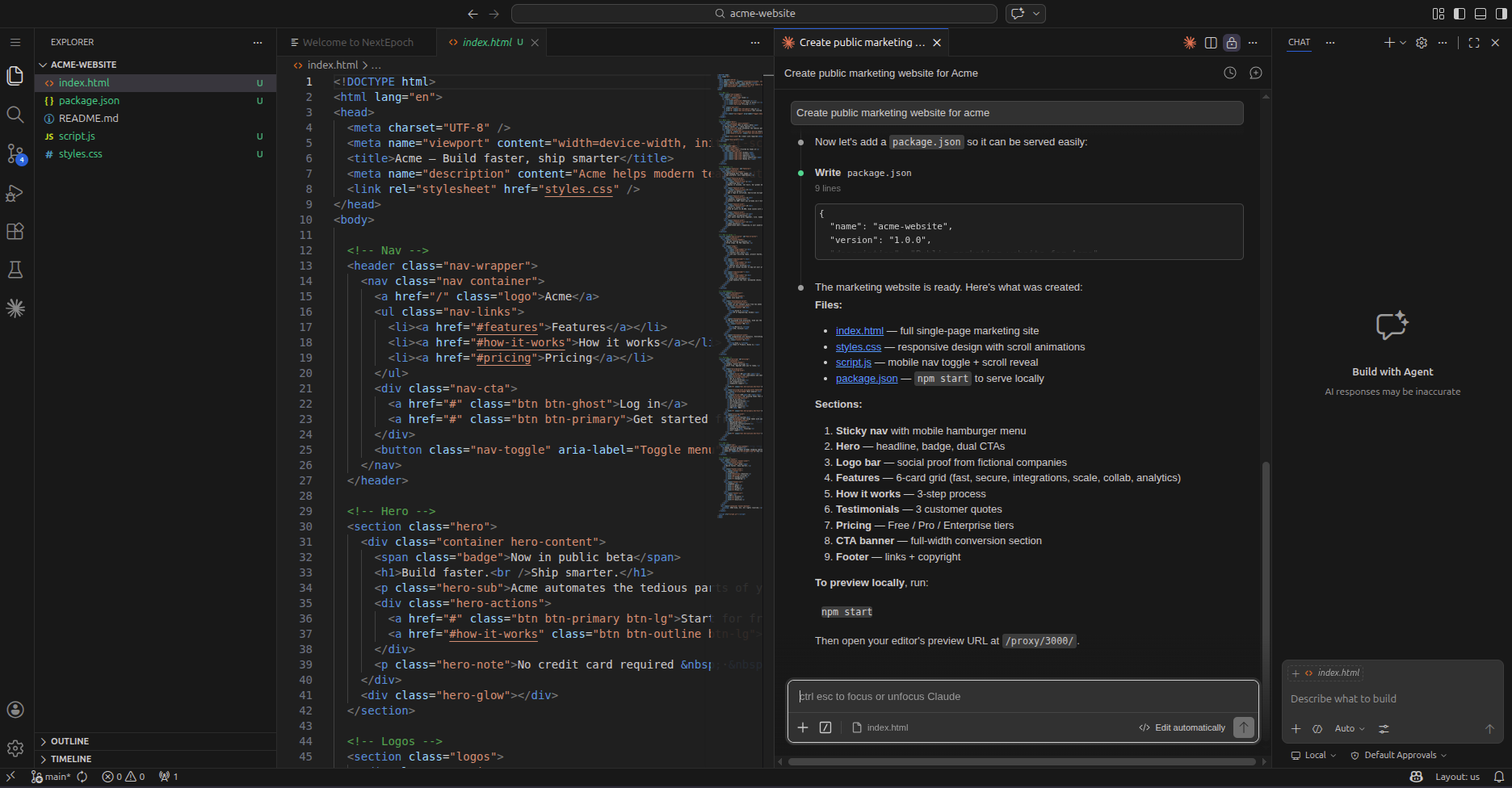
3. Review the generated code
The AI generates files, components, and configuration. Review what it created in the editor's file explorer.
4. Iterate with follow-up prompts
Ask for changes, refinements, or new features. The AI works within the same codebase context.
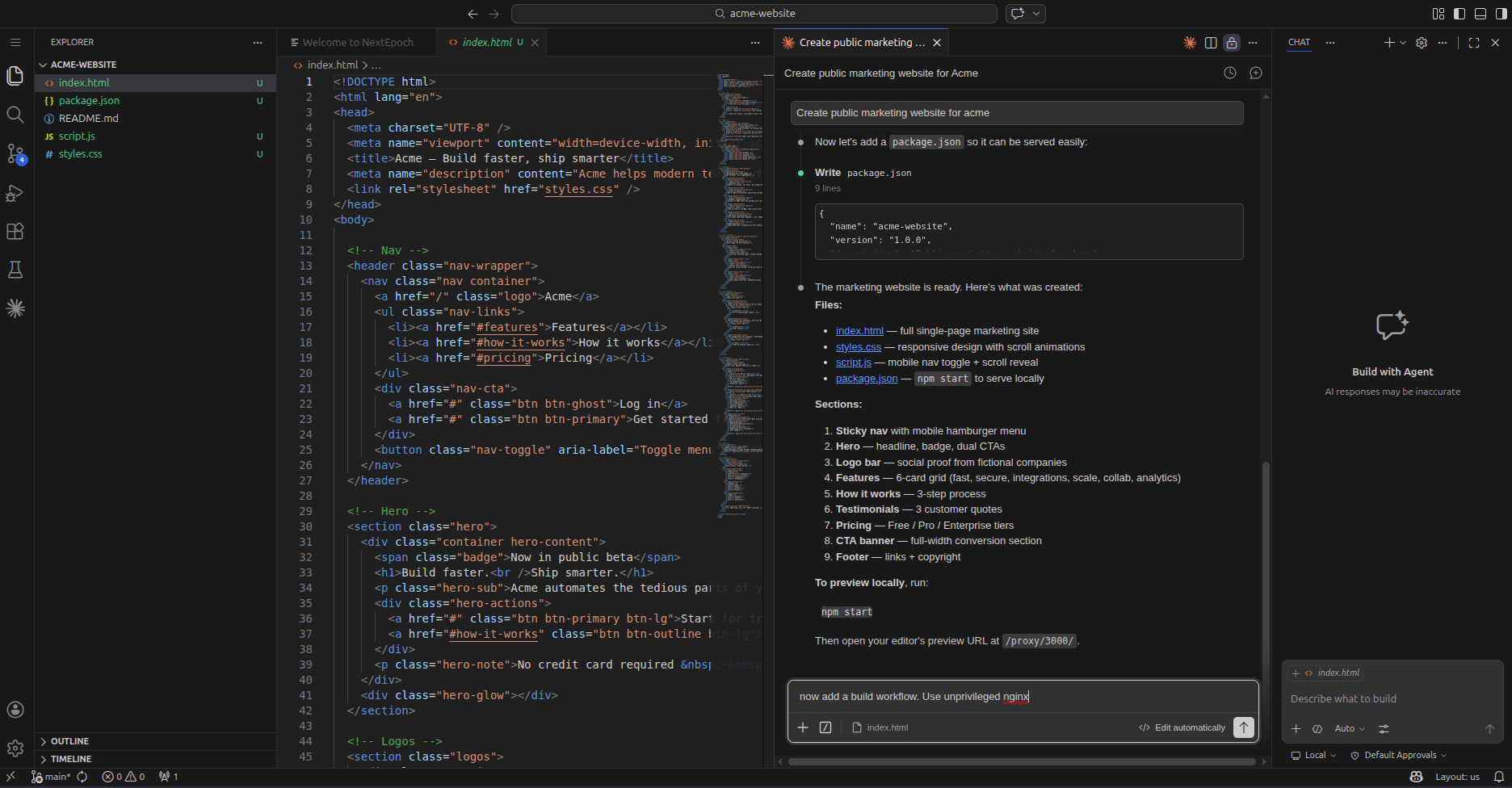
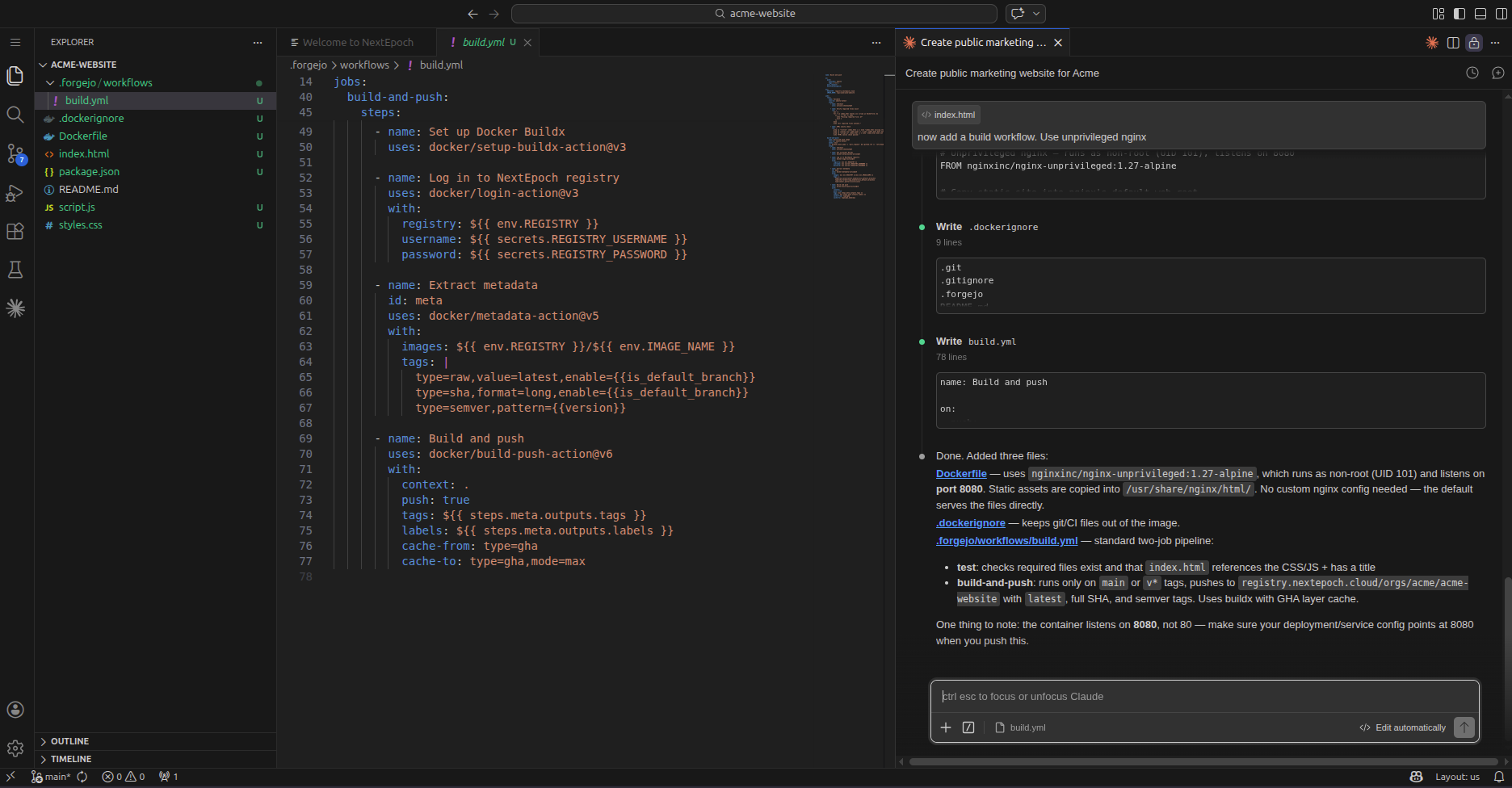
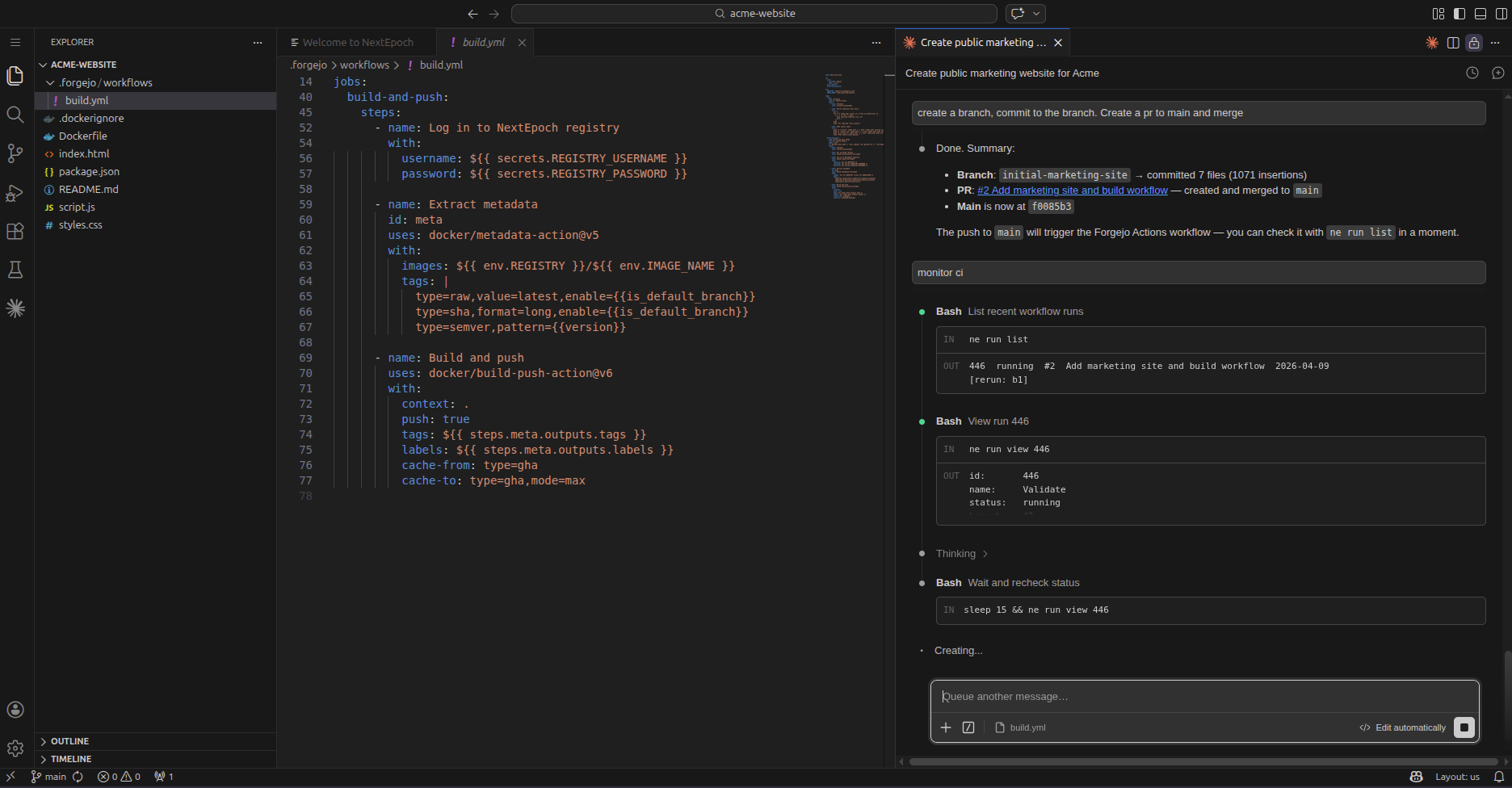
5. Add a build workflow
The AI can create CI/CD workflow files for your app, so every push runs the tests and security scans and builds your app's image.
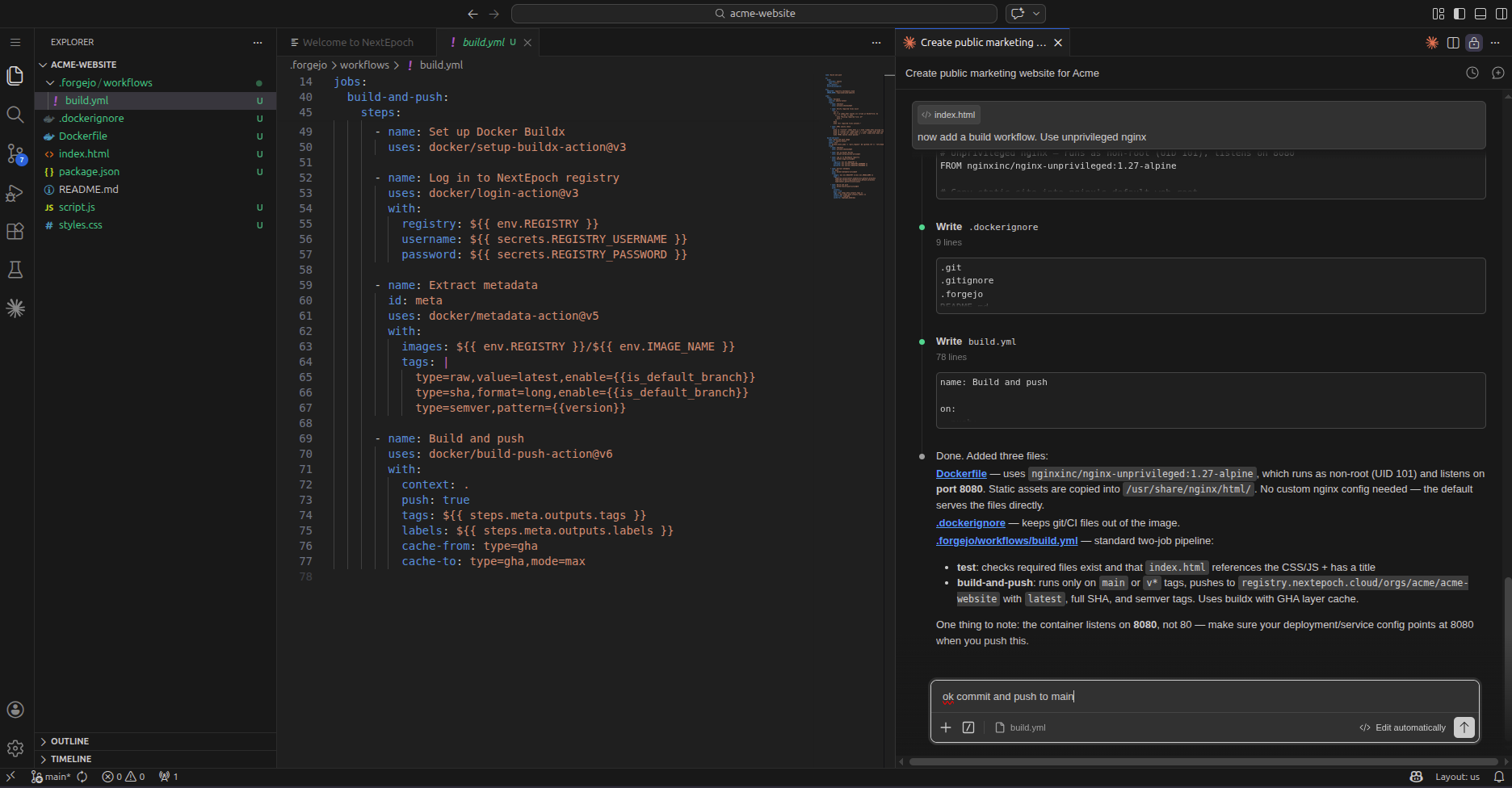
6. Commit and push
When you're ready, commit your changes and push. The AI can handle git operations too.
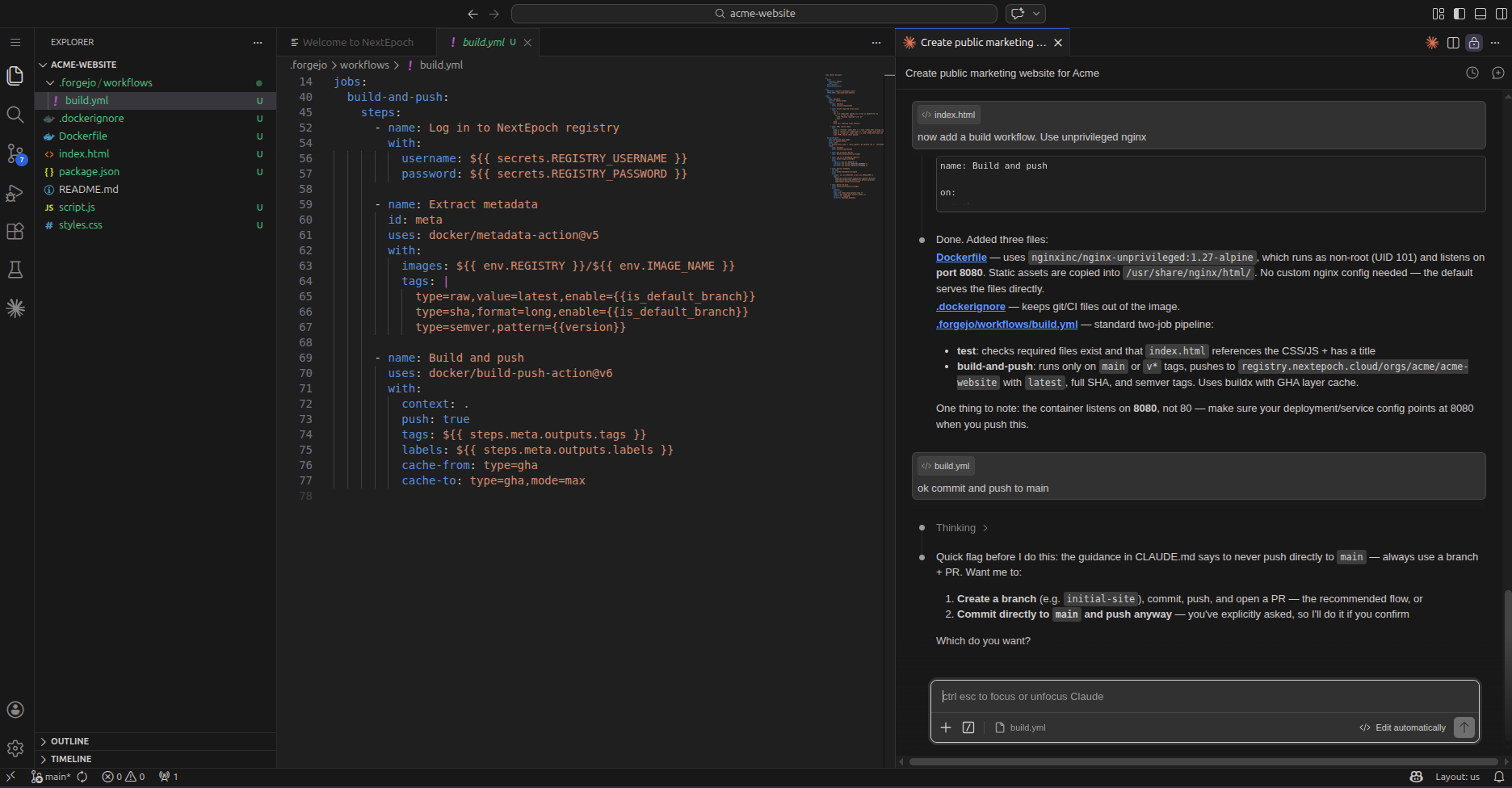
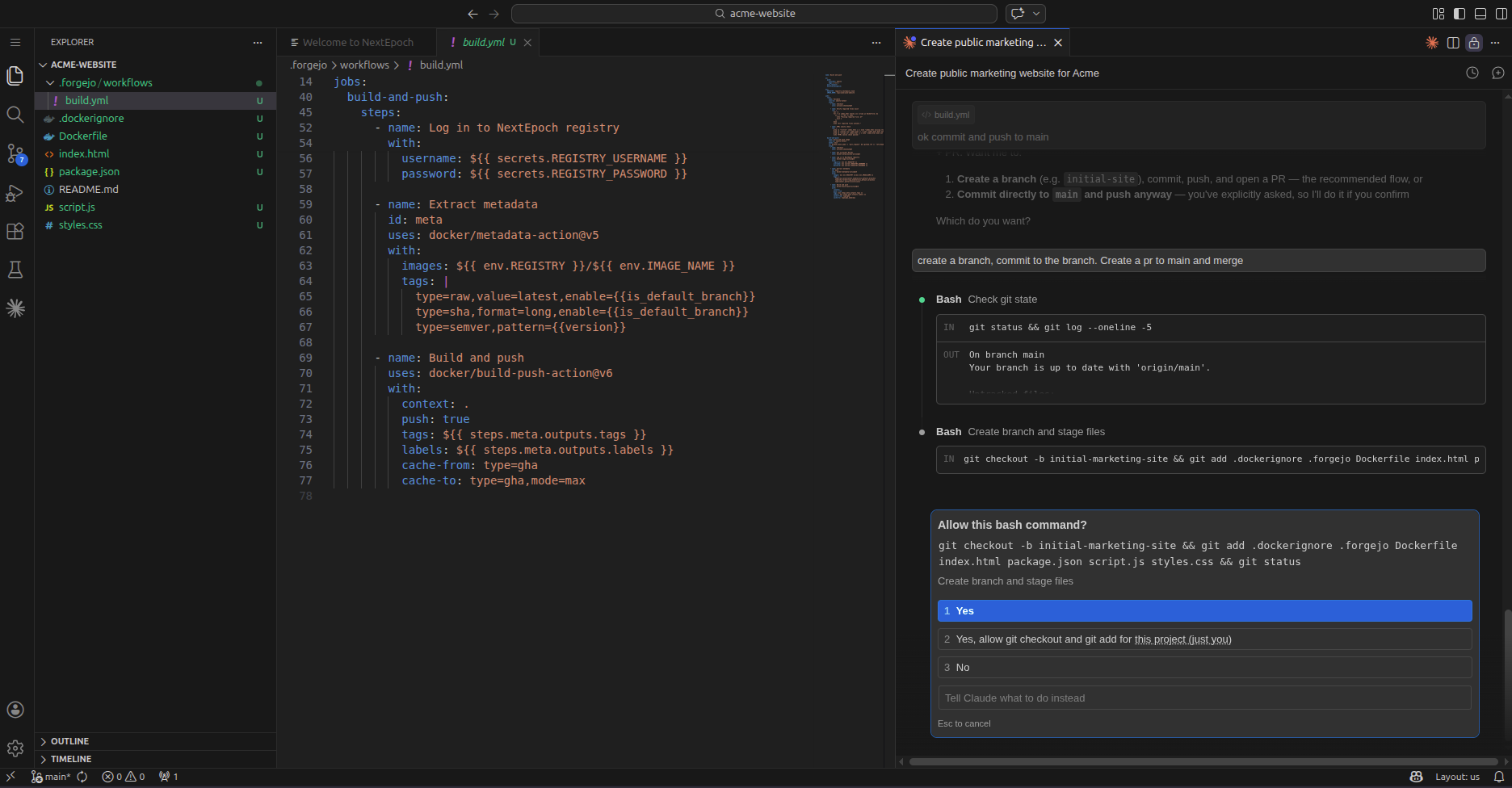
7. Approve the push
Review what's about to be pushed before it goes to the repository.
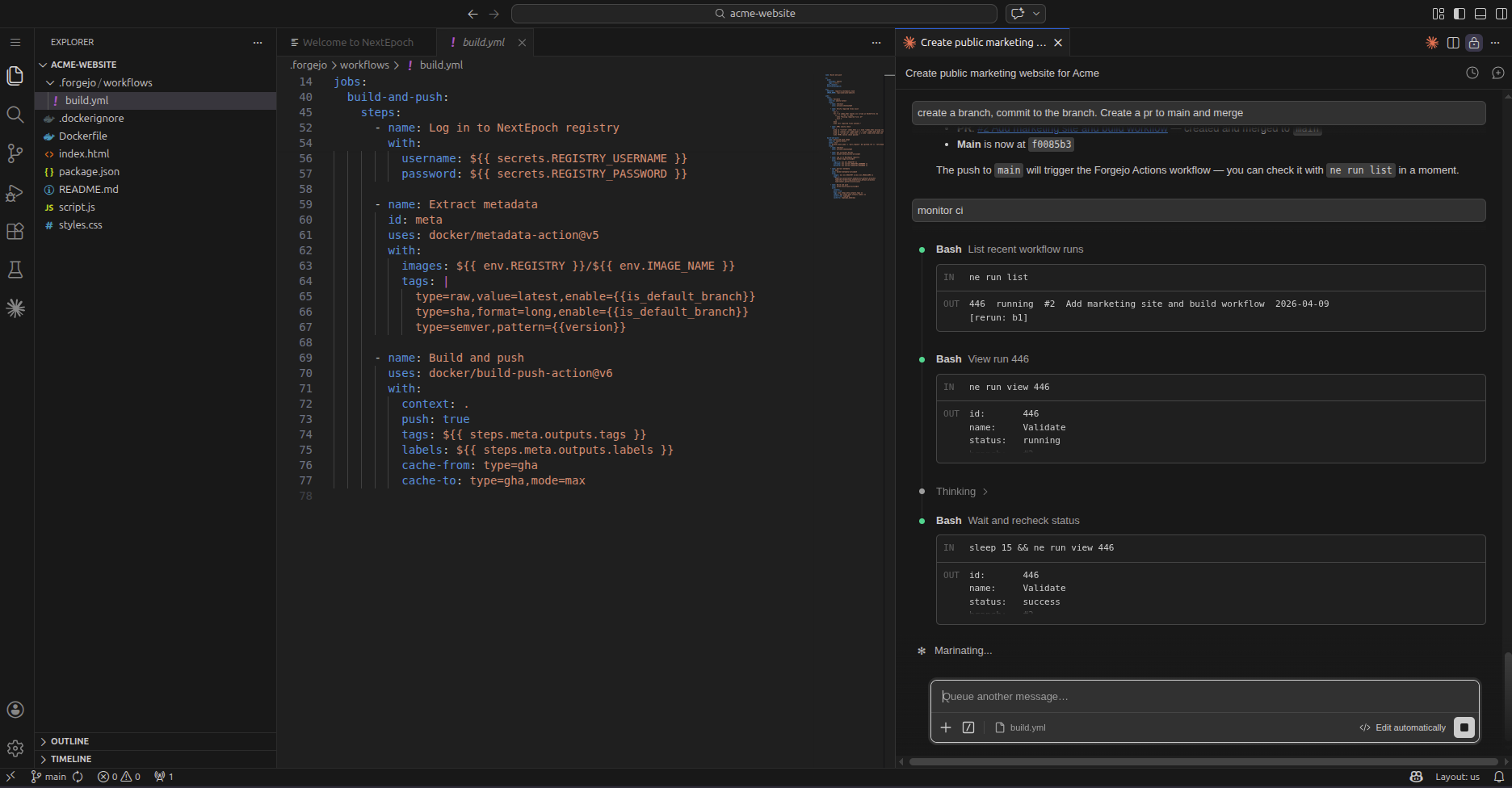
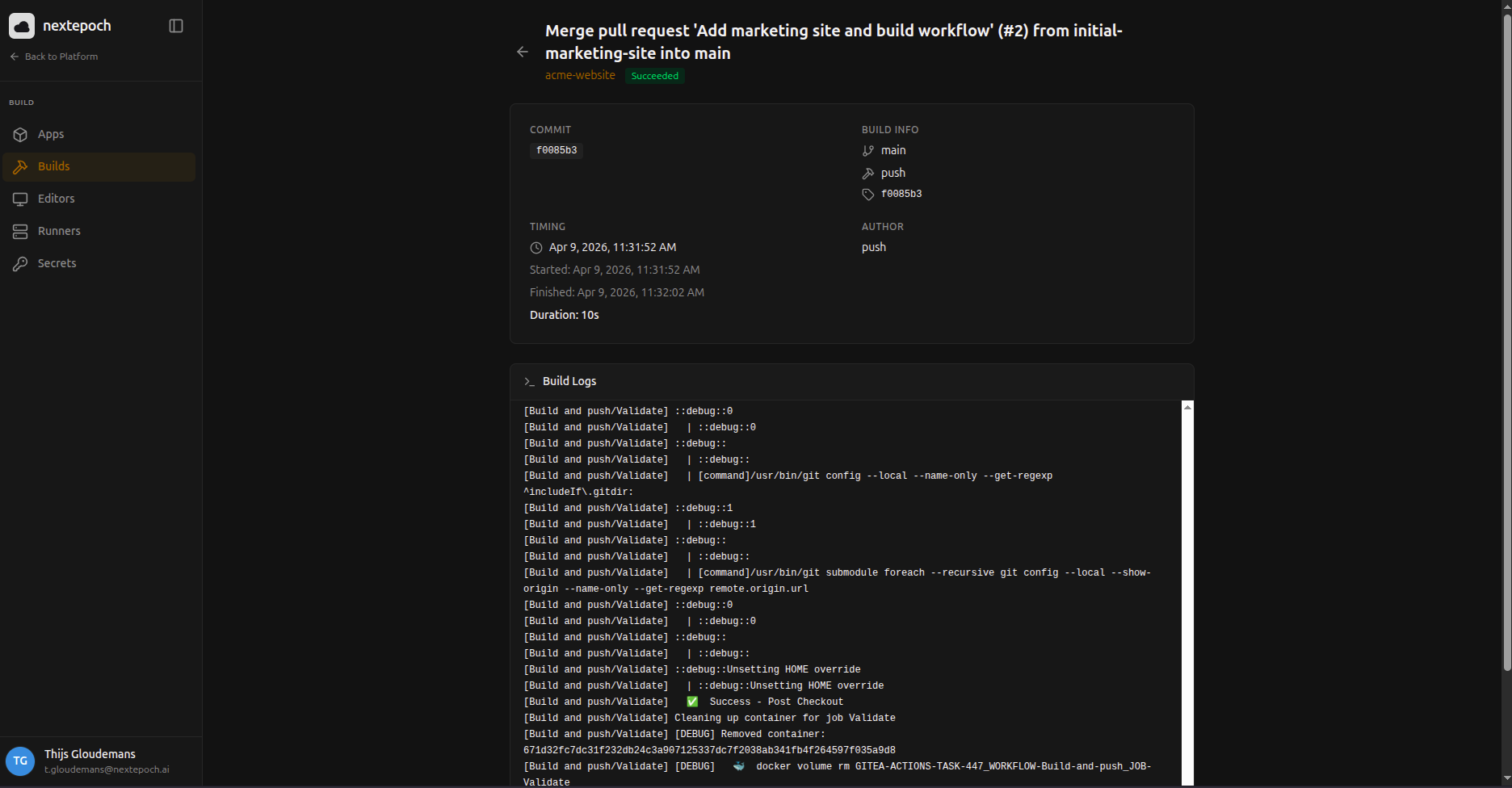
8. Watch the pipeline run
Your push triggers the full pipeline — build, test, security scan, compliance scan.
9. Deploy the app
When the pipeline is green, ask the AI to deploy the app — it runs ne catalog deploy — or click Deploy on the app's page in the portal. The app goes live on its own subdomain. A later push builds a new version; ask the AI to deploy it again (ne app deploy) when you want it live.
Choosing the AI
When you launch a new editor, pick its Editor Type:
| Editor Type | What you get |
|---|---|
| Claude | Claude Code. Sign in with your Claude subscription (claude login) inside the editor, or set an API key. |
| Codex | OpenAI Codex. Sign in with the Codex plugin inside the editor, or set an API key. |
| Custom provider | Claude Code driven against your own OpenAI-compatible provider (for example GLM 5.2): enter the provider base URL, API key and model. |
| Cowork (chat) | A chat-first workspace instead of the code editor: the same Claude Code agent, without the IDE. |
Claude and Cowork editors also have an AI provider:
- Bring your own subscription — sign in with your own Claude subscription, or set an API key.
- Shaep AI API — the model comes from the Shaep AI API and is billed to your organization's AI credit; no sign-in needed. It is offered when the organization has AI features on and Shaep AI enabled.
You can switch an existing editor's AI provider on the workspace's Editor tab; a running editor restarts to apply it. The editor type itself is chosen when the editor is created.