

Appearance
Editor
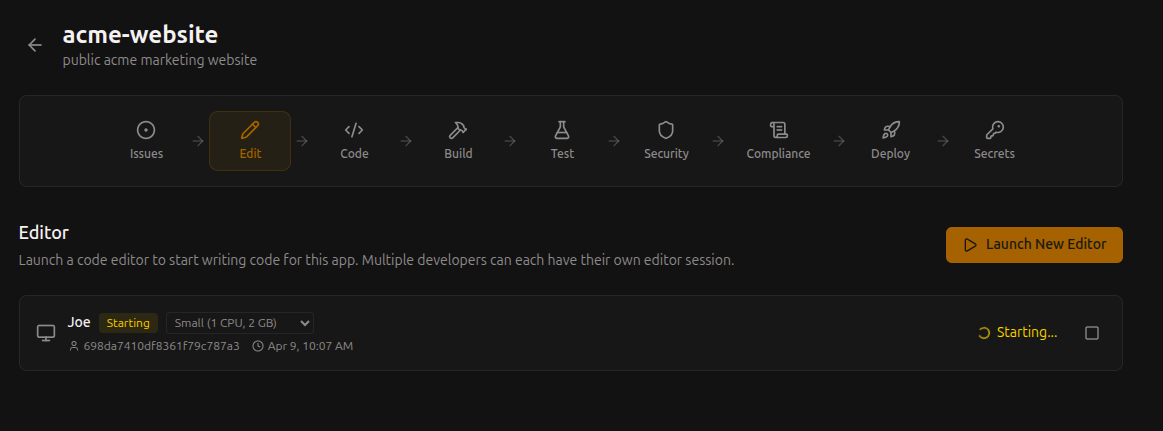
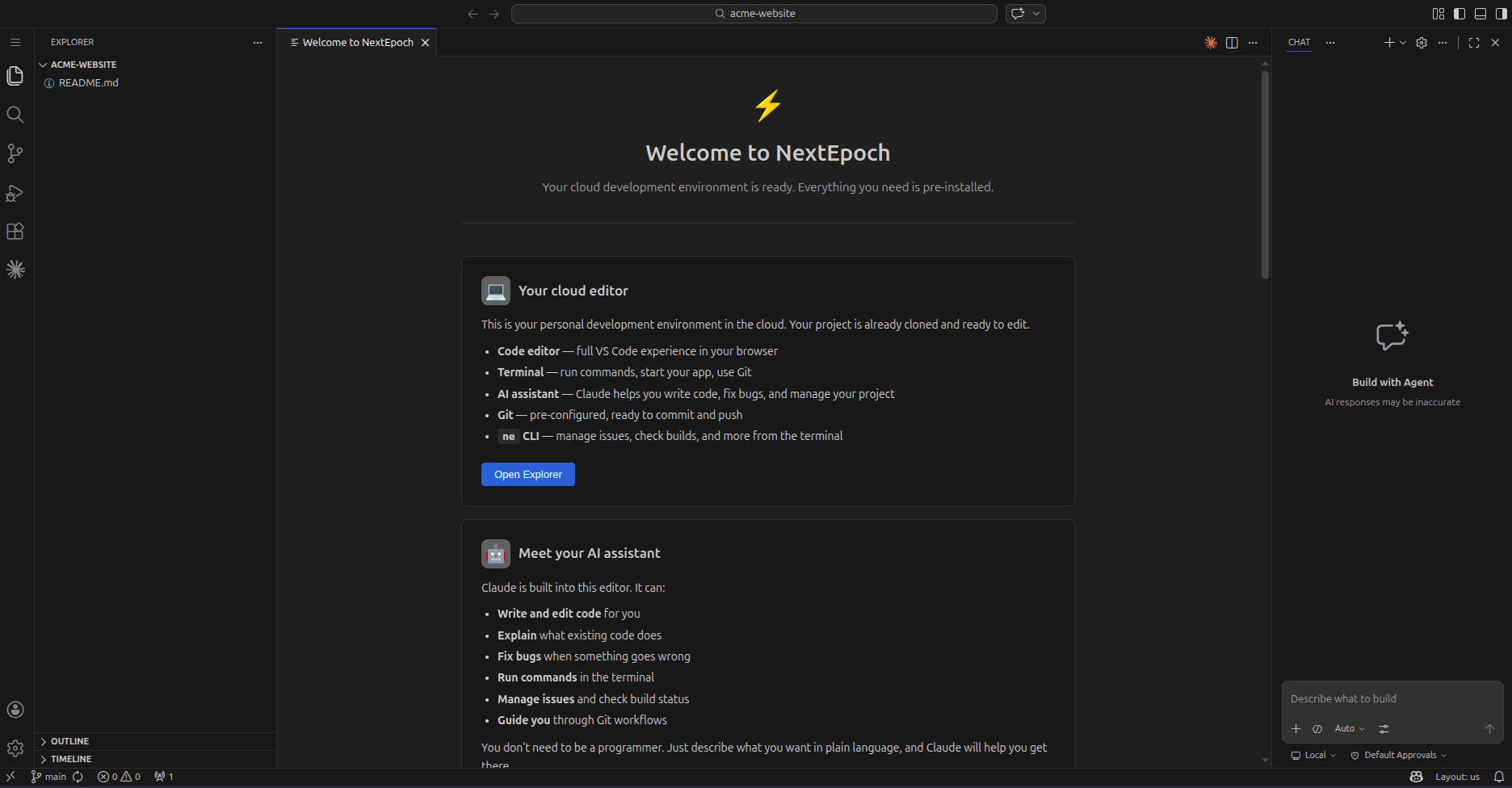
Shaep includes a VS Code-compatible editor that runs in your browser — no local setup required.
How It Works
The editor runs in its own container, managed by the platform, with the workspace's repository checked out. Each editor has its own terminal, extensions and state.
Opening the Editor
- Open the workspace in the portal and go to its Editor tab
- Click Launch New Editor
- Choose the Editor Type (see AI Coding), the size, and who the editor Acts as:
- You — the editor works with your own permissions
- Organization — the editor works as the organization
- An agent or managed identity — the editor gets short-lived tokens for that agent or identity; no secret is stored
- The editor opens in a new tab
Session Sizes
Each editor runs in its own container. Choose a size based on your workload:
| Size | CPU | Memory | Best for |
|---|---|---|---|
| Small | 1 vCPU | 2 GB | Light editing, small projects |
| Medium | 2 vCPU | 4 GB | Most development work |
| Large | 4 vCPU | 8 GB | Large codebases, heavy builds |
The largest size you can pick depends on your plan (see Usage & Quotas). You can change an existing editor's size on the Editor tab.
Auto-Shutdown and Clean-Up
- Auto-shutdown — an editor stops after a period without activity: 30 minutes, 1, 2 or 8 hours, or never. Set it per editor on the Editor tab. A stopped editor keeps its files; start it again from the portal.
- Unused editors are removed — an editor left unused for 30 days is removed automatically to reclaim storage, including anything not committed. Pin an editor to keep it. Commit and push your work regularly.
Extensions
The editor is VS Code in the browser. Install extensions from the Extensions view; they come from the Open VSX registry, not Microsoft's marketplace. Extensions and settings are kept when the editor restarts.
VS Code's built-in chat AI is switched off. The AI assistant is part of the editor type you choose; see AI Coding.
Multiple Developers
Multiple developers can each have their own editor on the same workspace. Each is isolated — your own terminal, your own extensions, your own workspace state.
Git Integration
The editor connects to the workspace's Git repository. Use the built-in Git panel or terminal to:
- Create and switch branches
- Stage, commit, and push changes
- Create pull requests
- Resolve merge conflicts